Maximizing the Facial Expression Feature in PSO2 NGS for Character Screenshots
JOURNALCORNERMay 23, 2022
Maximizing the Facial Expression Feature in PSO2 NGS for Character Screenshots
Sector Report / ARKS

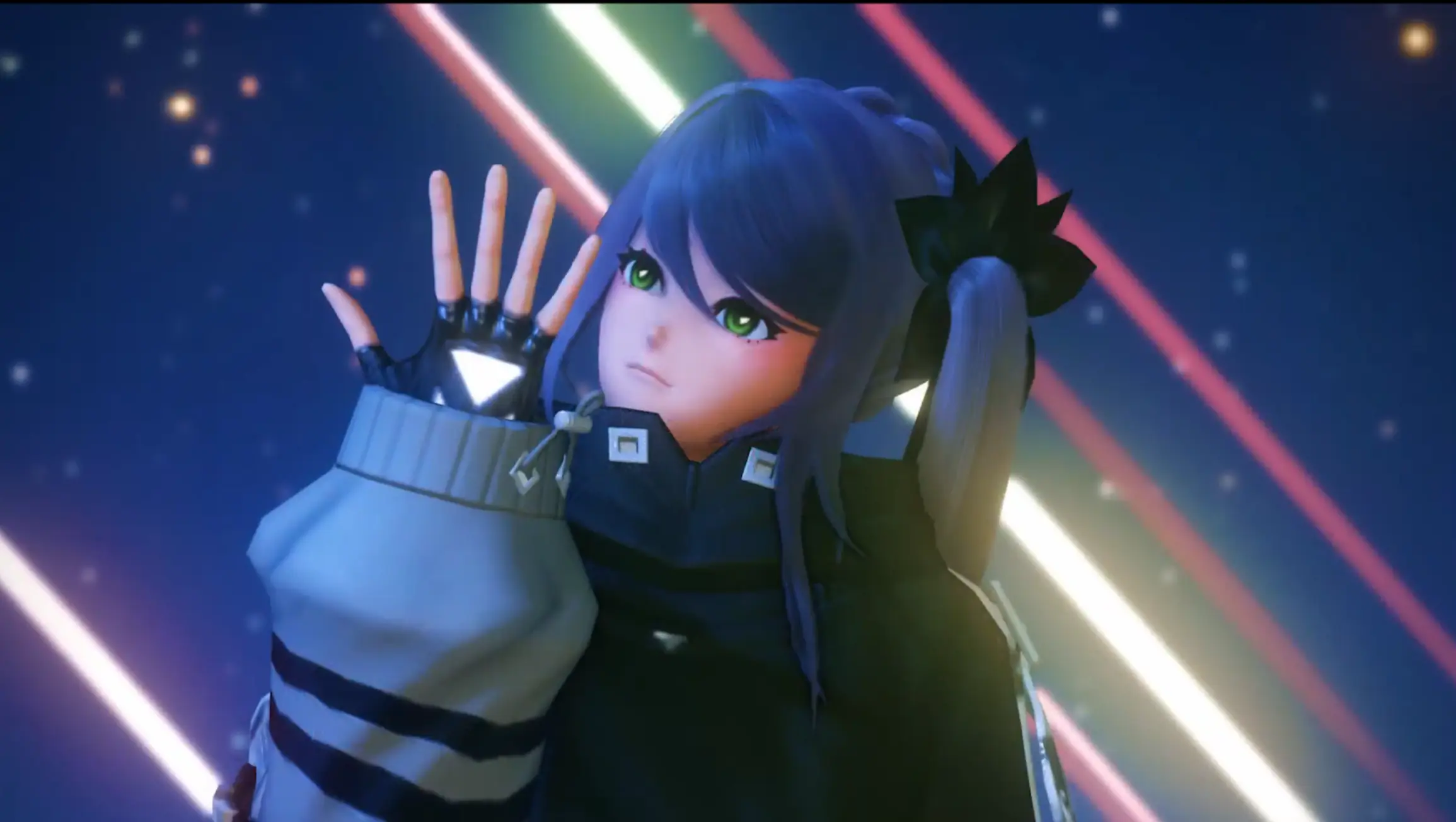
Inside the PSO2 NGS Character Creator menu, there is a customized facial expression menu that provides several type options.

Backstory

Taking good character screenshots in PSO2 NGS is often hindered by stiff facial expressions or unfocused gazes. Customization within the Character Creator menu alone isn't enough if the character cannot respond to the camera in-game.

This feature is highly useful and perfect for those who love taking screenshots of their own characters. In the character recipes I usually share, there is generally at least one expression setting included for each character. Of course, you are free to apply those settings to other expression slots like smile, angry, and so on as you wish.
ARKS

There is many expression slot, should all expression slots be changed ?

AISAGA

The answer is entirely up to you. However, having various types of expressions with your own custom settings definitely offers its own advantages. Taking character screenshots with a wider variety of expressions will certainly be much more fun.

SEC01

How to Use Facial Expression Commands via Chat

To access and trigger these facial expressions while in-game, you can use text chat commands. Here is the list of commands :

  • Triggering Expressions: Type /face1 through /face9 or /fc1 through /fc9.
  • Stopping the Expression at a Specific Second: Add the sX command after the expression command, where X is the duration in seconds.
  • Example: If you type /fc9 s2, your character's facial expression will stop/freeze at the 2-second mark. This is the perfect moment for you to take a screenshot.
  • Returning the Face to Normal: To reset the facial expression back to neutral, simply type the command /fc off.
SEC02

Adjusting Eye Direction to the Camera

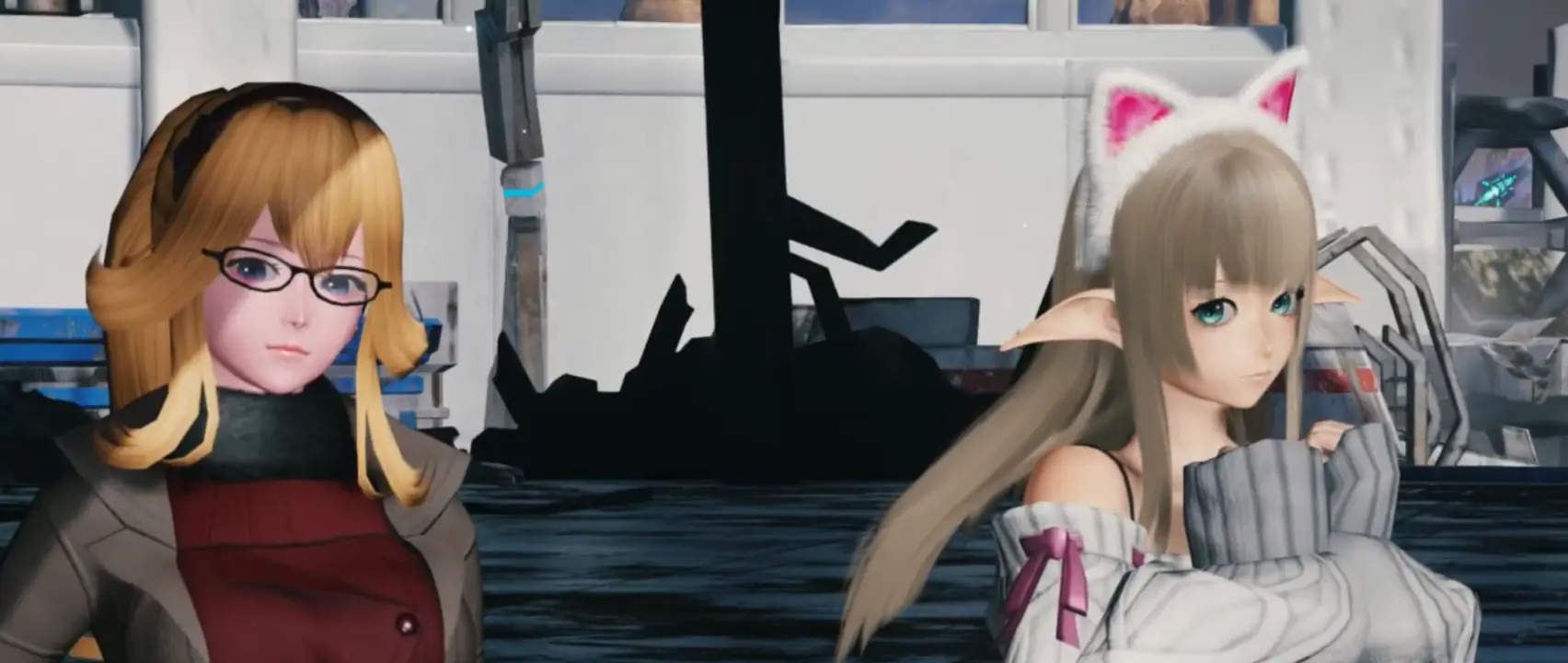
All player eye focused
All player eye focused

Aside from facial expressions, there are also important commands you can use to adjust your character's eye direction so they focus on the camera :

  • /ce : Used to make your own character's eyes look directly at the camera.
  • /ce all : Used to make the eyes of your character, as well as your friends or other nearby players, look at the camera together at the same time.
  • Turning Off the Camera Eye Feature: To restore the eyes back to normal (stop looking at the camera), simply type the command /ce off or /ce all off.
ARKS

Alright, let's see /fc9 s2 to freeze it, then /ce to look at the camera. Got it

AISAGA

Perfect, now you're all set to try it out. Thanks for reading through, and hopefully this helps you get those clean screenshots!

SEC03

The Video Breakdown

I also put together a quick video

Showing how these commands look in action and how the timing actually works when taking the shot. You can check it out right here if you want to see the visual setup before trying it out yourself.
Final Thoughts

In the end, it all comes down to personal customization preferences. This feature is just an alternative for those wanting to explore character visuals outside the usual editor menu. Hope this helps your screenshot gallery.